Notifications
If AMT Mobile and/or Health functionality has been deployed and configured to create and manage Notifications, you are able to create, view and update Notifications in this window.
Notifications can be generated by AMT or imported from an external system. An example of a Notification may be a result of a condition monitoring measurement triggering follow-up action.
The Default fields displayed are:
-
Title
-
Asset
-
Date Raised
-
Rating
-
Counter (which identifies to you there have been multiple updates to the notification)
-
Assigned To
-
Status
Notification buttons
| Icon | Description |
|---|---|

|
Filter notifications. |

|
Clear Filters. |

|
Refreshes the current selection. |

|
The count of notifications (1) with warning level 4. |

|
The count of notifications (3) with warning level 3. |

|
Add a new manual notification. Adding a new notification takes you to the Notification's web screen. |

|
Edit an existing notification. Editing an existing notification takes you to the Notification's web screen. |
Filter explanation
Notification filter options operate as follows, and note, these differ in the date area from the filters when accessing Notifications on the web interface.
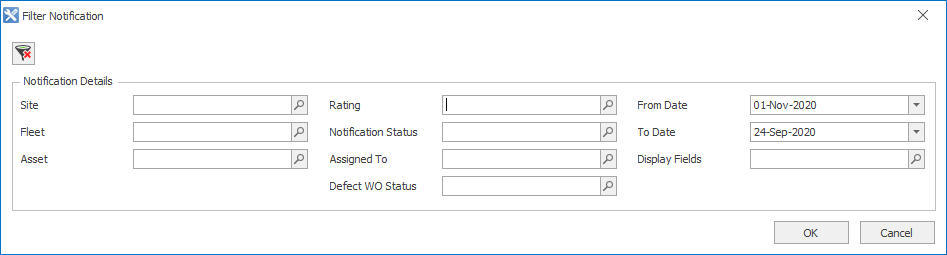
How filter notification works with the AMT Client window
-
Filters can be set in line with the standard AMT paradigm with the exception of From Date and To Date. It is a software design decision to ensure any saved date filters do not preclude you from seeing new notifications when the screen is opened.
-
Date filters can be changed from the default values and will apply for the time the screen is active. If you close the screen or navigate away from the screen, the date filters will return to the default.
-
Default Date filters will display:
-
Date From = (midnight/00:00:00) Today’s date - 1 day.
-
Date To = (23:59:59) Today’s date.
-
If you run this screen at 2.15 in the afternoon on September 1, 2020, the results will display all notifications that have a date greater than 31-Aug-2020 00:00:00 and
01-Sep-2020 14:15:00.
-
-
The Clear Filter icon resets last used filters (excluding dates which are not saved).
-
Notifications display in a grid with the software design standard columns (Asset, Title, Date Raised, Rating, Counter, Assigned To, Status). Additional columns can be added to this grid based on one or more of the Display Fields selected.
Display field options are:
- Defect Workorder Status
- Serial Number
- Site
- Customer
- Inspection Type
- Operational Impact
- Source Workorder
- External ID
- Source
- Occupational Health and Safety
- Notification Number.
You can right-click on a Notification and select an action. An explanation of the actions are in the table below.
| Selection | Description |
|---|---|
| Add Notification |
Add a new manual notification. Adding a new notification takes you to the notification's web screen. |
| Edit Notification |
Edit a notification. Editing an existing notification takes you to the notification's web screen. |
| Add Backlog Task | Create a backlog work order in the AMT Planning module. |
| Edit Failure Mode Assessment | If the notification was generated by AMT's Condition Based Maintenance (CBM) module, you can view and update CBM's Failure Mode Assessment. |
| Edit Strategy Task | If the notification was generated by AMT's CBM module, you can view the strategy task the notification is linked to. The notification is linked to a strategy task via a CBM component structure. |
| Edit Equipment | View the equipment the notification is linked to. |
| Edit Measurements | If the notification was generated by an AMT Condition Monitoring Measurement rule, you can view and edit the measurement that triggered that rule. |
| Long-term Planning | Launch the Long-term Planning screen for the highlighted equipment. |