Parts
Navigate to Daily Planning > Planning > Workorders tab. Double-click the work order and click the Parts tab.
Enter the required parts into the work order
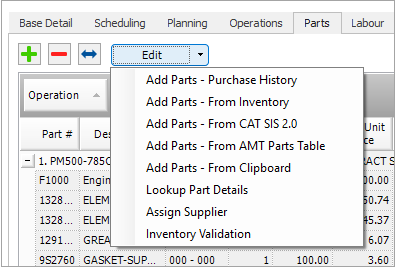
There are a number of ways in which you can enter the parts required. Some are found on the Edit drop-down list.
Manually
Highlight the Operation, add a new row, then enter the parts details directly into the grid.
Manually with lookup
Use the Lookup Parts Details function. This will look up the part description and pricing from the AMT Parts Table. It is a useful way to validate the correct part number.
Automatically from strategy work order
If a strategy work order has a standard job linked, when AMT automatically creates the planning work order it will populate it with the standard job parts and labour details.
From standard job
Select and import parts from a standard job.
Search part table
Lets you drag and drop parts from the AMT Parts Table.
Add parts purchase history
Every time a work order is completed the planned parts for that work order are copied to a history table. The Search Purchase History function allows you to search the history.
Add Parts from Inventory
This requires a special interface. You can look up your internal stores to see stock levels and select parts to order.
Add Parts Part Book
For certain installations of AMT you can add parts from external parts book platforms supplied from OEMs.
Add Parts from Clipboard
Enables you to paste a list of parts from Excel into an AMT work order. The functionality allows a list of parts to be copied to the clipboard from Excel, and the clipboard is displayed as a grid in AMT. The grid allows you to identify the type of AMT field in each column. The following fields are supported in the new functionality:
-
Part Number
-
Part Description
-
Source of Supply
-
Stock Code
-
Supplier
-
Planned Quantity
-
Planning Notes
Not all fields need to be included in the data copied to the clipboard. The minimum fields required for the functionality to work are Planned Quantity with either Part Number or Part Description.
Upon selecting Add Parts - From Clipboard a grid displays with the contents of the clipboard and you can use the drop-down menus at the top of each column to specify the AMT fields in the column.
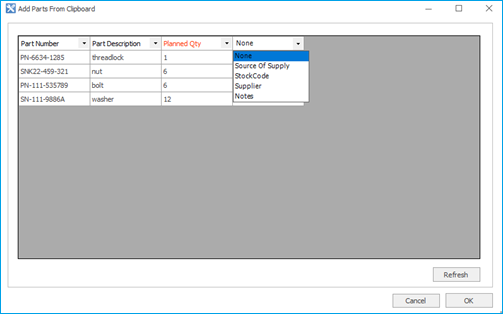
The data in the grid is read only. The column headings can be modified if data was accidentally mapped to the wrong column. If there are validation errors in the data from the clipboard, the cells in error are highlighted. The data will need to be fixed in the data source and copied to the clipboard again.
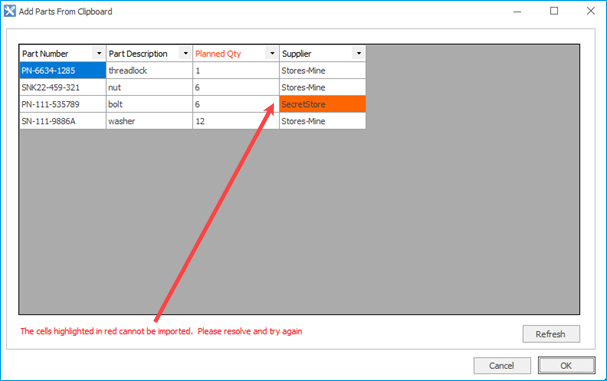
Click Refresh to reload the corrected data from the clipboard into the grid. Click OK to validate the refreshed data.
Once the parts data passes validation, it is appended to the work order parts grid as new parts on the pre-selected work order operation. The functionality operated on one operation at a time. If parts need to be added to different operations, the Add Parts - Paste From Clipboard process needs to be repeated with the parts list for each required operation. The functionality does not try to match existing parts and update them.
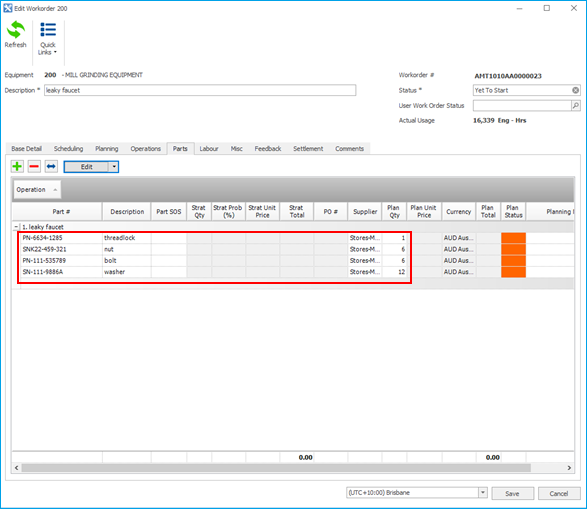
Standard AMT functionality is now being used to save the work order, validate the parts against inventory, assign supplier and so on.
Order Parts
-
Generate the purchase order or internal requisition number
-
Click the Quick Links button above the Purchase Order grid and click Assign No to automatically generate the purchase order number. You can manually override it with another reference number, for example, the PO Number from an external system.
Send off the purchase orders or parts requisitions
Depending on your AMT configuration you can do this in the following ways.
- Print and fax, post or manually deliver it.
- Email it.
- Send it electronically through an interface.
Monitor the planning status of parts
- Yellow = No purchase order created.
- Blue = Parts ordered but not yet available.
- Red = Parts not yet ordered.
- Green = Parts are available.
There are three configuration options for doing this in AMT.
Purchase Order Status
Update the Expected Delivery Date of the purchase order or internal requisition and that determines the status for all parts linked to that purchase order. Orange = Expected delivery date in the future. Green = Expected delivery date in the past.
Specific Parts Status (Manual)
You can edit the status for each part, the expected delivery date, and if the part has been received.
Specific Parts Status (Imported)
An interface from an external inventory system updates the status for each part, the expected delivery date and if it is reserved. You can right-click the parts line to see additional information about that part (such as quantity in stores).
Reporting the planning status of parts
You have the ability to run the Planning Status report, which is designed to assist maintenance planners fine tune planning schedules spanning the next day to any period in the planning horizon. This includes the ability to report on the planning parts status at the part level for respective work orders. Navigate to Daily Planning > Daily Planning Reports > Planning Status.
 Related Topics