Scheduling Gantt chart and grid descriptions
Navigate to Daily Planning > Planning > Scheduling tab.
The screen is divided into four sections.
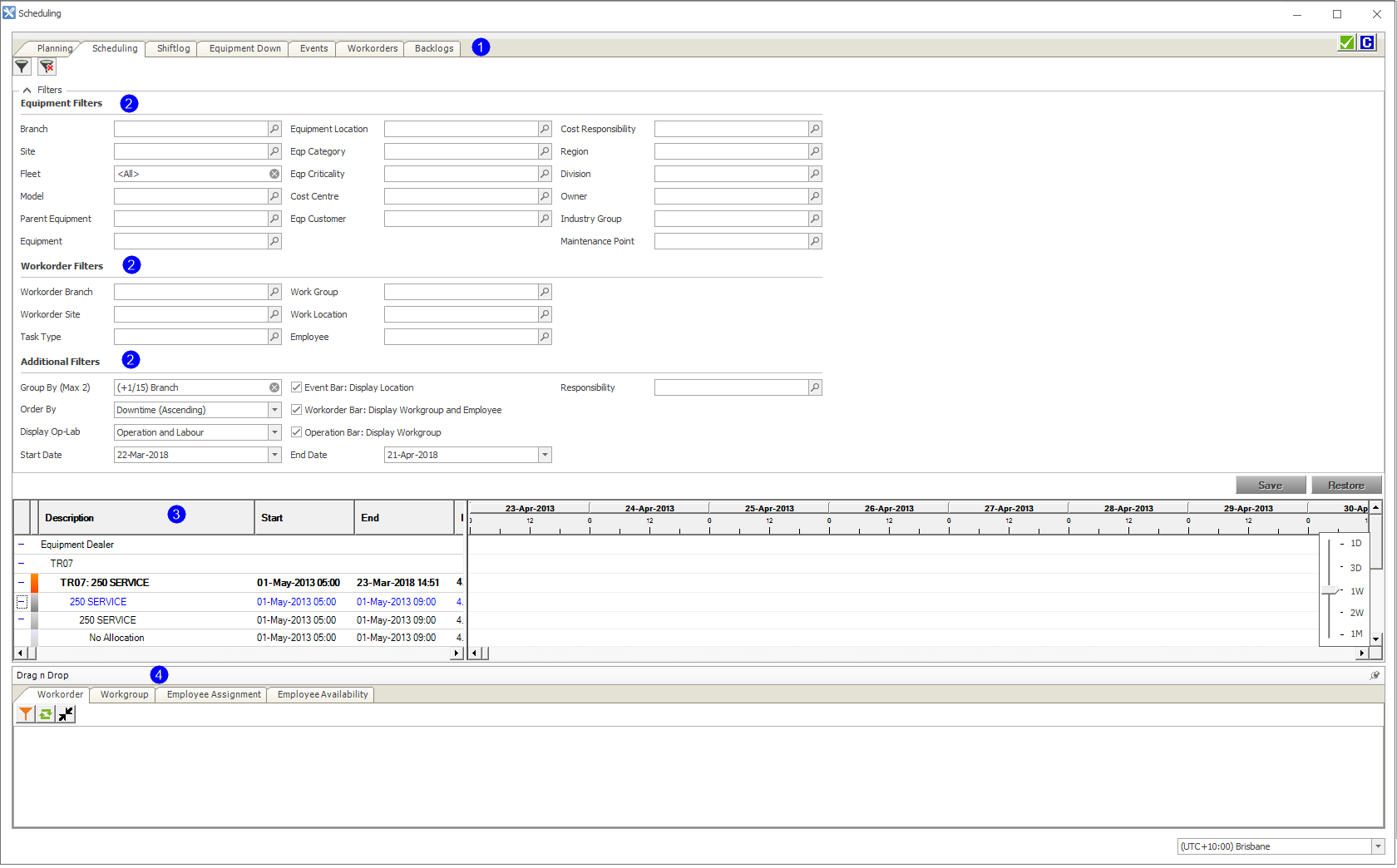
- Functions: Planning, Scheduled, Shiftlog, Equipment Down, Events , Workorders, Backlogs.
- Filters: Equipment, Work Order and Additional.
- Grid: Contains the data you filtered for.
- Drag-n-Drop: Contains Work Order, Work Group, Employee Assignment and Employee Availability tabs which can be dragged and dropped onto the Gantt Chart to generate a schedule.
The screenshot below indicates aesthetic changes to assist you with understanding and visualisation of the work order statuses and the equipment planning mode.
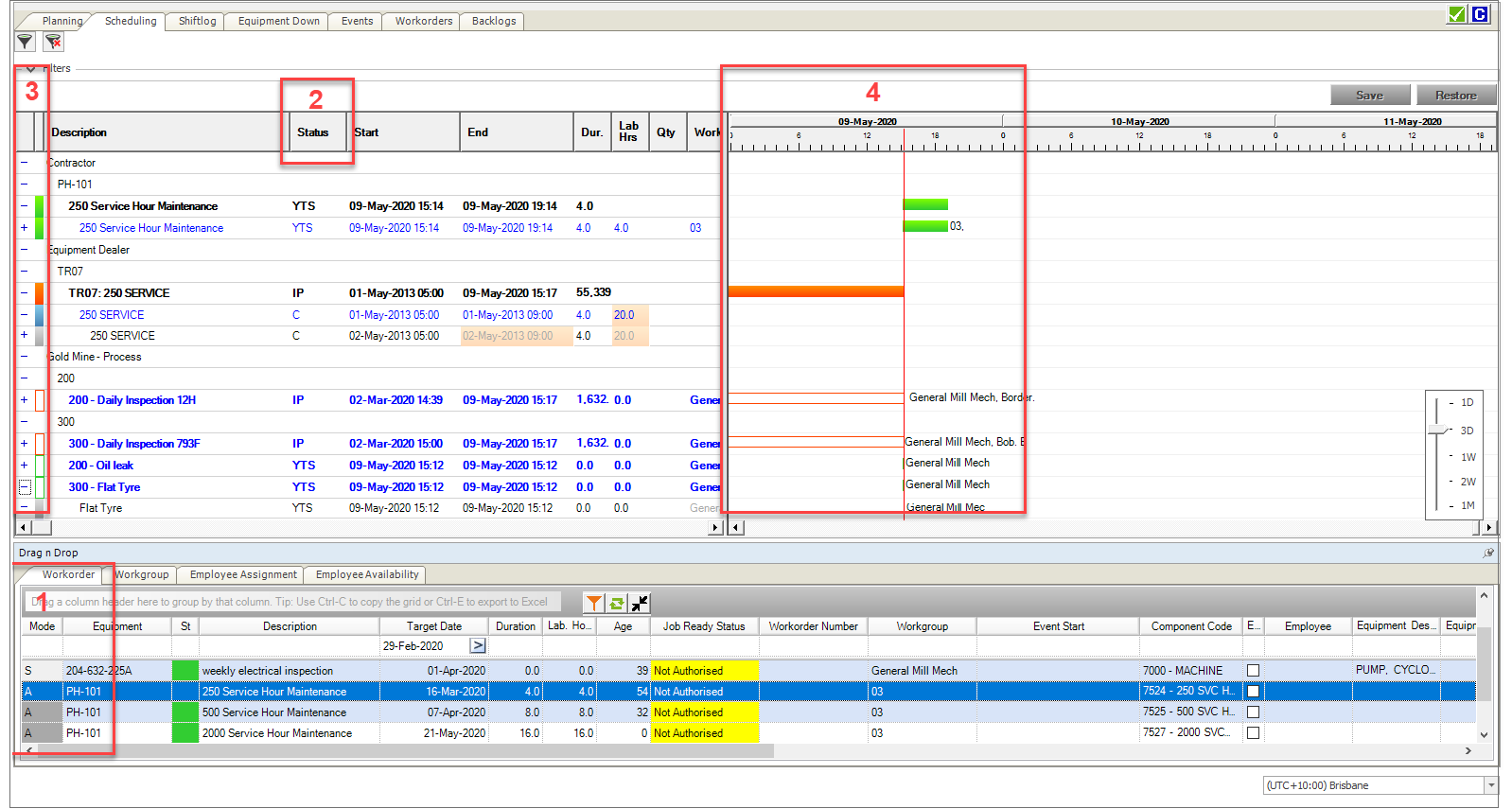
- The first column in the Work Order results grid has a new heading, Mode. This column indicates the Equipment Planning Mode – Standard Planning (S) and Advanced Planning (A). Individual rows within the results grid will now display either an A or an S as well as the previously Dark Grey and Light Grey theme. The use of the A and S assists with the new grid filtering mentioned previously.
- A new status column has been added to the Scheduling Grid which will display the status of the Event and Work Order.
- Colour visualisation within the Scheduling Grid has been enhanced for work order status from previous AMT versions. The full colour explanation is included below:
Colour AMT Entity Meaning Black Shutdown Shutdown Solid Green
Bold Black FontEvent Yet To Start Event Solid Orange
Bold Black FontEvent In Progress Event Solid Orange
Blue FontAdvanced Planning Work Order In Progress Work Order Solid Green
Blue FontAdvanced Planning Work Order Yet To Start Work Order Solid Teal
Blue FontAdvanced Planning Work Order Completed Work Order Gold
Blue FontAdvanced Planning Work Order Abandoned Work Order Moccasin
Blue FontAdvanced Planning Work Order Deferred Work Order Orange Outline
Bold Blue Font
Standard Planning Work Order In Progress Work Order Green Outline
Bold Blue FontStandard Planning Work Order Yet To Start Work Order - Colour visualisation of the bars in the Gantt chart is enhanced and aligns with those in the Scheduling grid.
- No changes have occurred to Operation and Labour Activity displays.
Gantt chart descriptions

| Item | Description |
|---|---|
| 1 | Equipment and Event. |
| 2 | Work order. |
| 3 | If the downtime or uptime of a work order or operation does not fall within the planned downtime, orange shading displays. |
| 4 | In this example, the grey bar for the last labour resources does not display even though there are labour hours. This is because the operation's duration is 0. |
Work order grid
The Work Order results grid, by default, displays the ability to group and search the grid. The grouping ability on the grid can be hidden by using the Collapse icon.

This will give some additional screen real estate if grouping is not required.
The limited space available on this screen creates some challenges for all the information needed. You will see that, at times, this icon set will move within the header area.
Work order grid column descriptions
| Field | Description |
|---|---|
| SM | Standard mode. Advanced mode. |
| Strategy | Strategy task. Condition monitoring intervention. Non-strategy and Non-condition based maintenance task. |
| Target Date | The performed by date which is set in the work order. |
| Duration | Number of hours required to perform the work order (elapsed time). |
| Labour Hours | Number of labour hours required to perform the work order. |
| Age | Number of days the work order has been in the Planning screen. |
| Job Ready Status
|
Not authorised. Authorised - Parts required. Authorised - Parts ordered. Ready - Authorised and parts ready. |
| Work Order Number | Work order settlement number. |
| Work Group | Group scheduled to perform the work order. |
Work group grid column descriptions
| Field | Description |
|---|---|
|
Work Group |
Work group name. |
|
Code |
Work group code |
|
Default |
This box is selected if the work group is the default work group for the site. |
|
Target |
Target allocation percentage (which is set per work group in the work group system table). |
| Date (daily) |
 < Target (each Work Group has a Target). < Target (each Work Group has a Target). OK (less than 100% but greater than or equal to Target) OK (less than 100% but greater than or equal to Target) Over-Allocated. Over-Allocated.Status is calculated by comparing the work group’s available man hours vs. time allocated to actual work orders. |
Work group filter descriptions
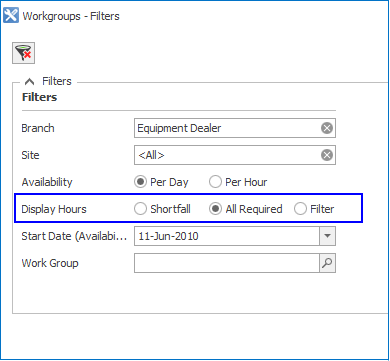
| Display Hours |
Shortfall All Required
Filter
|
Employee Assignment grid column descriptions
| Field | Description |
|---|---|
|
Work Group |
Work group name. |
|
Lab. Activity |
Default labour activity assigned to the employee in the employee system table. |
|
Employee |
Employee name (Surname, Initial). |
Employee availability grid column descriptions
| Field | Description |
|---|---|
|
Work Group |
Work group name. |
|
Lab. Activity |
Default labour activity assigned to the employee in the employee system table. |
|
Employee |
Employee name (Surname, Initial). |
| Date/Time (hourly) |
 Non-work time. Not available time. Non-work time. Not available time. Allocated. Allocated. Partly available. Available. Conflict. Partly available. Available. Conflict.Status is calculated by comparing the employee’s available hours vs. time allocated to actual work orders. |
 Related Topics