Activity areas tab
The Activity Areas tab in Client provides a central workspace for managing all activity areas in your site. It lists every activity area in a grid and offers tools to view, edit, and validate their properties. From this tab, you can control how activity areas are displayed in the 3D scene, apply bulk actions, and access detailed information for scheduling and reporting.
On this tab, you can:
-
View all activity areas in a structured list.
-
Control how areas are displayed in the 3D scene.
-
Perform bulk actions such as locking, merging, or assigning destinations.
-
Access annotations and reporting options.
Toolbar options
|
Option |
Description |
|---|---|
|
Visibility |
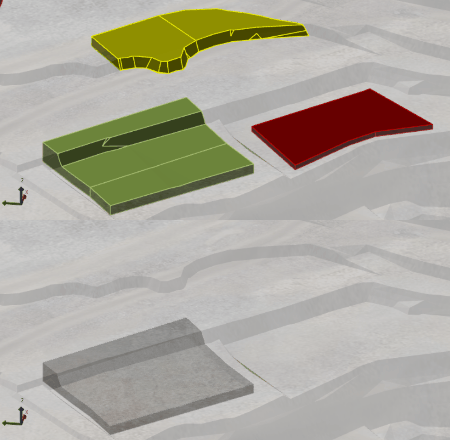
Show or hide all activity areas in the 3D scene without removing them from the grid.
[GIF] Showing and hiding activity areas. Activity areas that move material are cut into the topography. This controls the Activity Area toggle in Scene Manager. |
|
Show Selected Areas |
Shows only the plot-selected activity areas in the grid. This makes it easy to focus on the details of relevant activity areas.
|
|
Mining Direction Visibility |
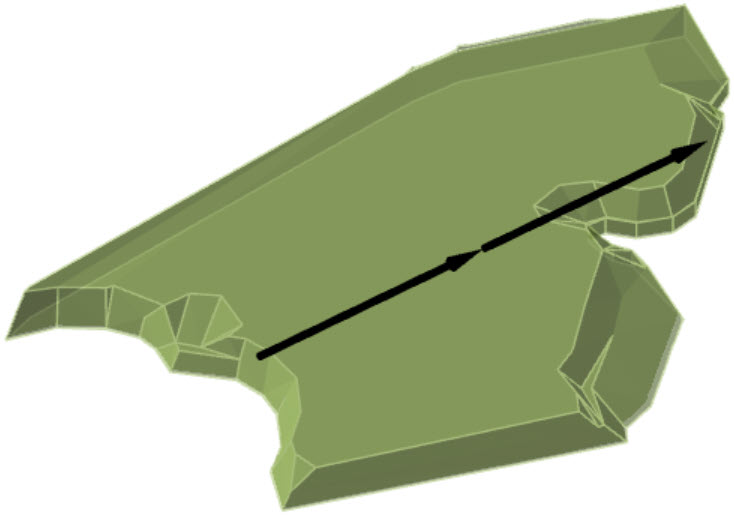
Toggles the display of mining direction arrows on activity areas.
|
|
Key Edges Visibility |
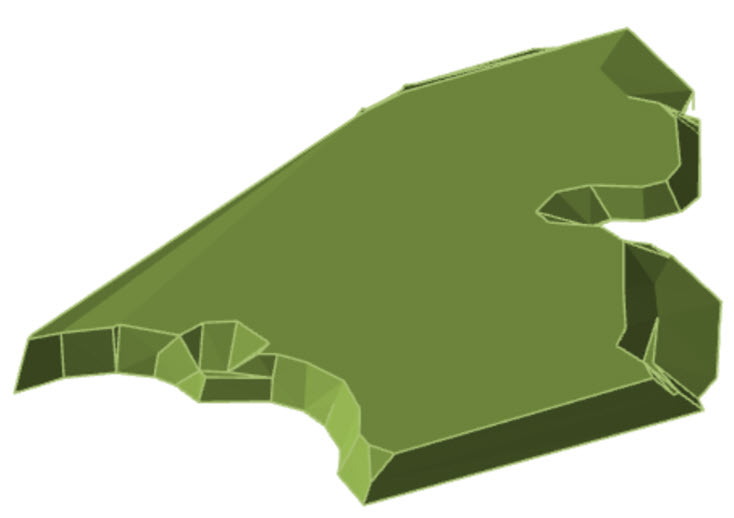
Toggles the display of key edges on activity areas.
[GIF] Toggling key edges on an activity area |
|
Area Fill Visibility |
Toggles the fill of activity area polygons and solids.
|
|
Mining Path Days |
Toggles the visibility of mining path days on activity areas that are scheduled on the Gantt chart. Mining path days are points plotted along the activity area mining direction. Each point is positioned, along the mining direction, according to the start of the day when that point in the mining direction the activity area is mined. Each point is accordingly annotated with a number that indicates the day within the calendar scheduling horizon when the activity area is mined at that point.
|
|
Export activity areas |
Opens a dialog for exporting activity areas to external files. For more information, refer to Export activity areas. |
|
Display Style |
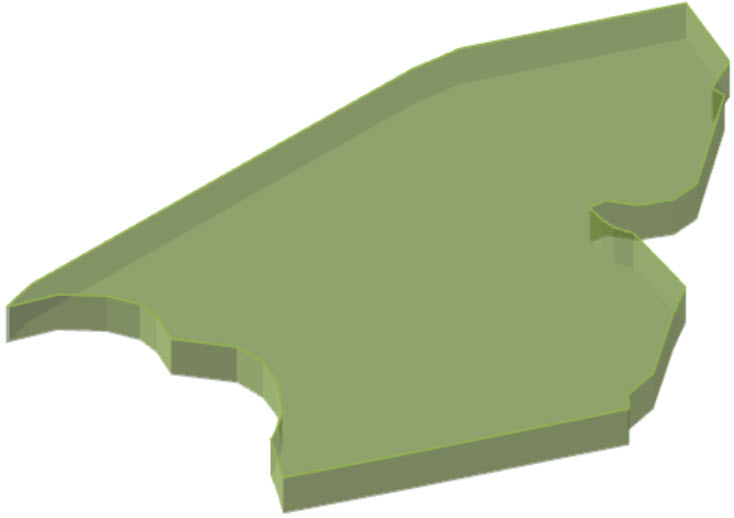
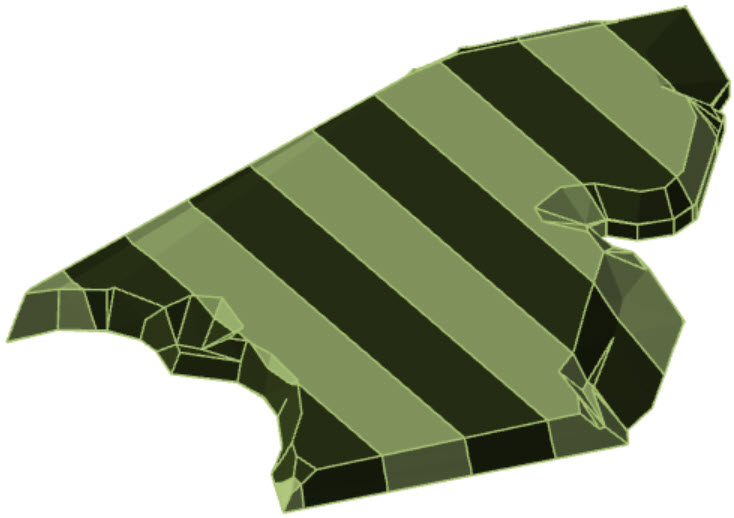
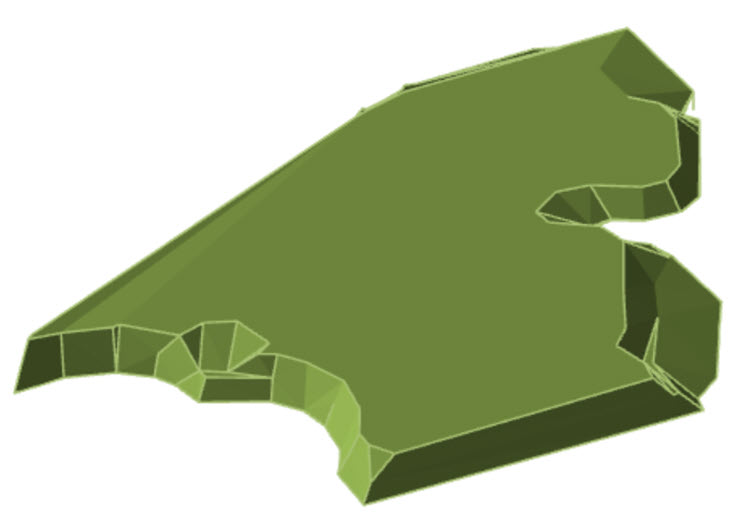
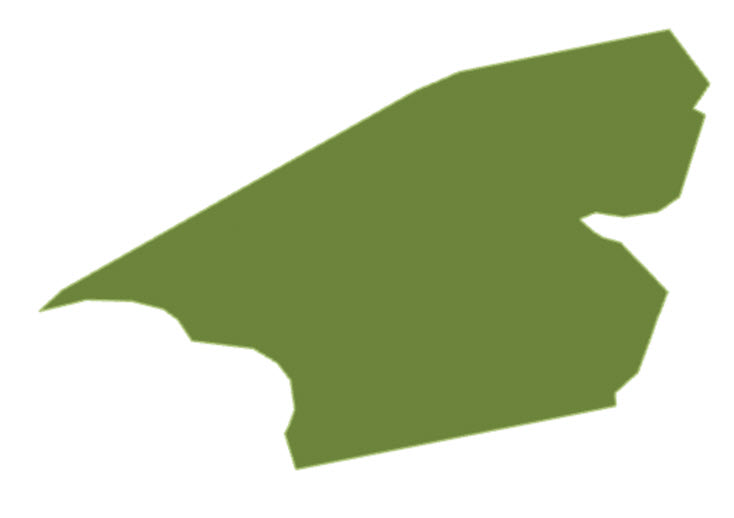
Switch between different visualisation modes for activity areas in the 3D scene:
|
|
Legend |
Defines how each activity area is coloured in the scene. For more information, refer to Activity area legends. |
|
Opacity |
Controls the transparency of all activity areas (0: no visibility | 100: fully visible). |
|
Activity Area Annotations |
Applies the selected annotation rule to all activity areas. For more information, refer to Activity Area Annotations. |
 Toggle activity area visibility
 Toggle showing the graphically selected
activity areas
Toggle showing the graphically selected
activity areas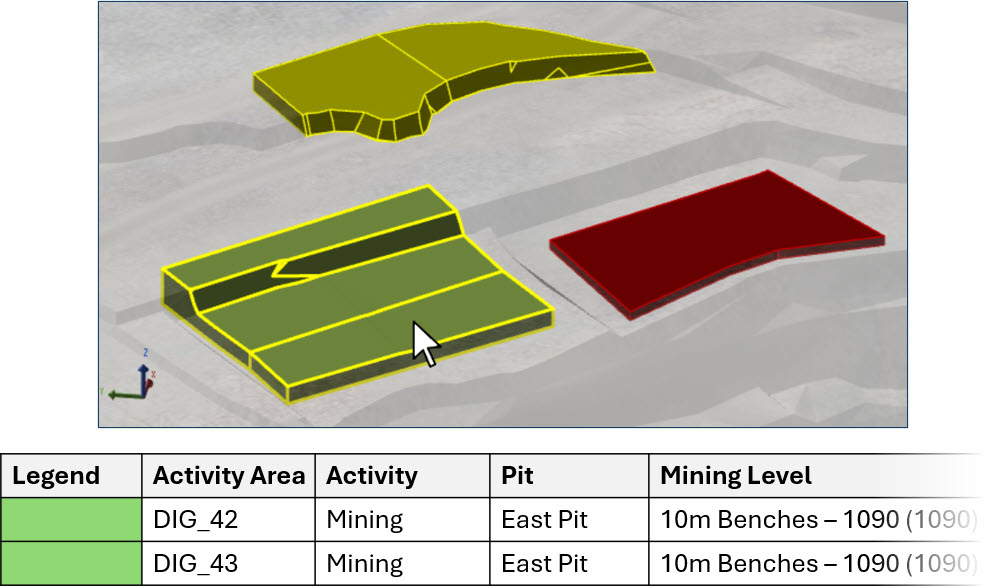
 Toggle mining direction visibility
 Toggle visibility of key edges
 Toggle the visibility of the area fill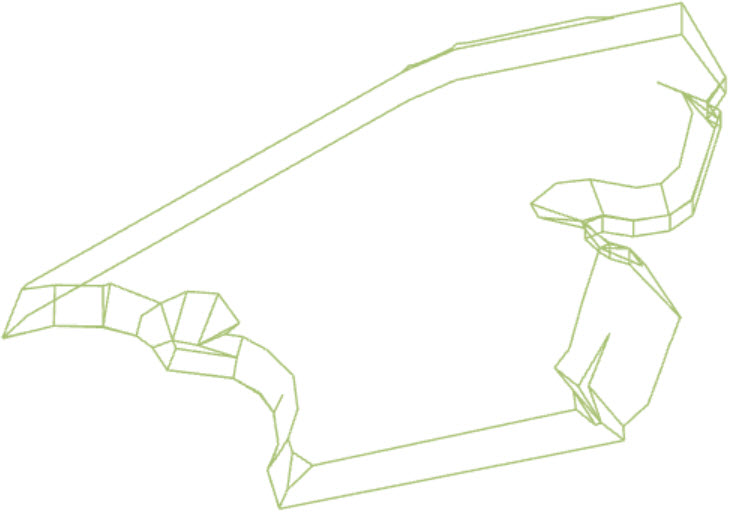
 Toggle mining path days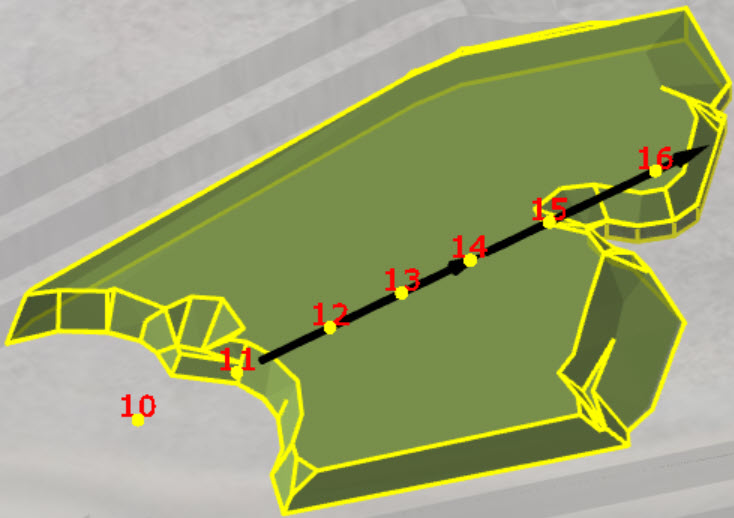
 Export the activity areas