Convert to activity areas
Activity area designs are often created in different software before being imported into this application. While the software provides tools to draw activity area designs from scratch, you can also convert existing designs from external data.
With the Convert to activity areas feature, you convert designs into activity areas. The designs may have associated metadata, which can be referenced to automatically configure the activity areas – including details like the associated name, mining level, assigned pit, and so on. The designs can be in the form of polygons or solids.
The conversion feature helps automate the activity area design process, making it quicker and easier to replicate an externally designed plan with complex mining shapes.
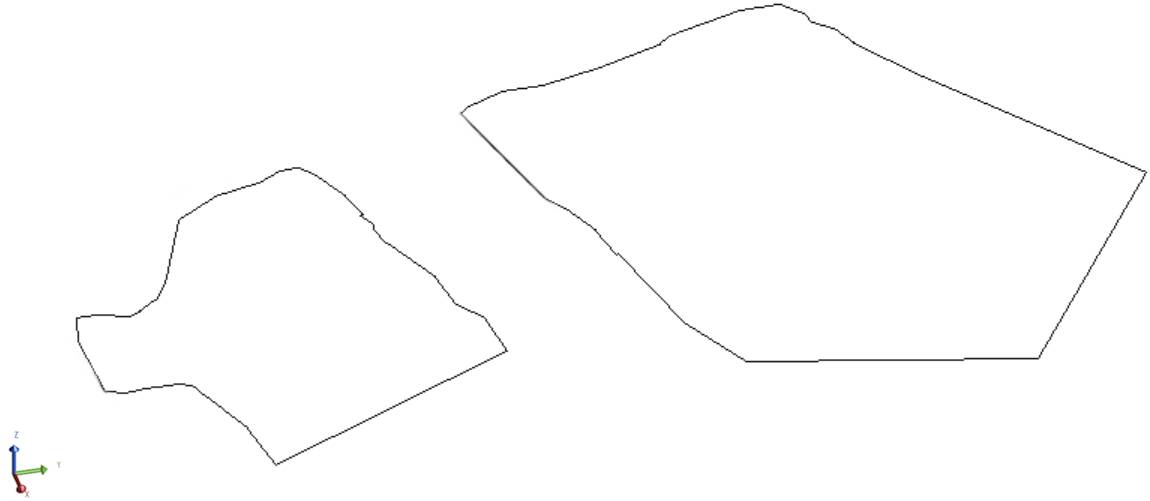
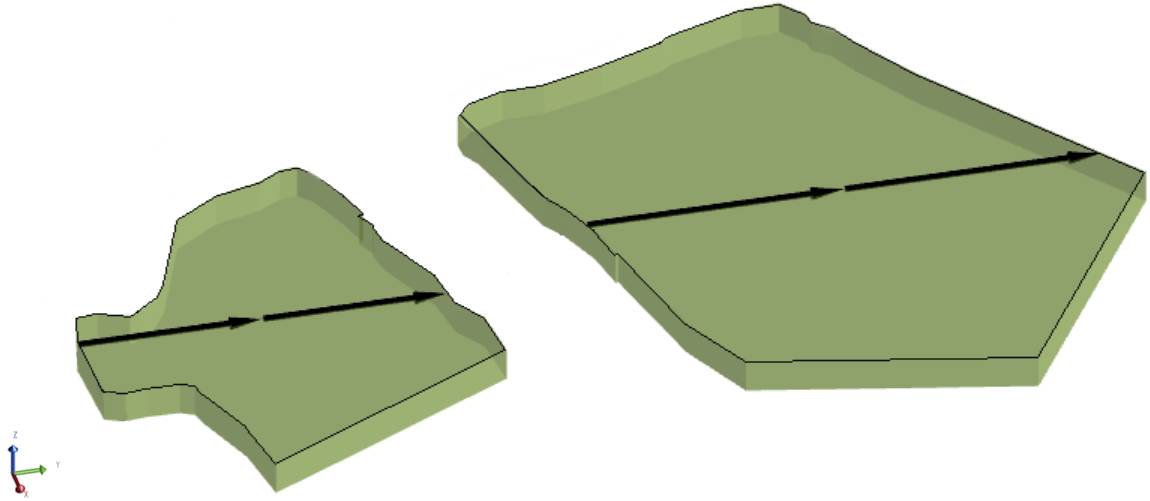
Converting feature layer polygons to mining activity areas. The selected polygons are mapped to a mining level and extruded using the reserving logic.
The metadata within the imported objects can be referenced to automate the conversion. For example, each object’s metadata fields could specify the required activity area name, mining level, and pit. In this case, you can rapidly convert the selected objects to activity areas using the correct inputs.
Converting objects to activity areas
Activity area designs can be derived from various sources, including feature layers, guidance files, or grade control files.
-
Schedule guidance provide longer-term context to the short-term schedule. The files include a collection of objects that derive from a longer-term schedule in a scheduling package, like MinePlanner.
-
A feature layer represents spatial objects—such as roads or buildings—accurately placed in 3D space to visualise elements of a mine design. These objects can be points, lines, or polygons, and are used to enhance planning and scheduling by overlaying them on plots.
-
Grade control shapes are solids that define grade, quality, and quality values within the overlapping areas of the deposit. These shapes take precedence over the underlying block model definitions. Activity areas inherit the grade control values of the intersecting grade control shapes.
Initiate the conversion
You perform the conversion on the Guidance, Feature Layer, or Grade Control tabs. You can select any combination of items to convert into activity areas. Only one type of object can be converted at a time.
For steps on how to convert a type of object go to:
In terms of feature layers, each object within the feature layers is loaded. The software identifies each type of object and stores its ID and any other metadata associated with the object. This data is useful for deriving activity areas from feature layer metadata (see Reference metadata below).
To convert objects into an activity areas
-
In Config, import the objects (refer to View schedule guidance in Client (Guidance tab), View feature layers in Client (Feature Layers tab), or View grade control in Client).
-
In Client, go to the relevant tab (Guidance, Feature Layer, or Grade Control).
-
Plot-select the objects, or select the objects in the table.
For feature layers, you can also initiate the conversion through the context menu.
-
Ensure the objects are visible, then plot-select the objects.
-
Prepare the conversion configuration.
Refer to Conversion properties below for a description of each property.
-
Click Convert to activity areas.
-
Review the resulting activity area in the plot.
Import objects to convert
Summarising the types of objects you can convert, they include:
-
A polygon representing the outline of activity areas.
-
A triangulated solid, representing the whole activity area.
Convert from type
The conversion configuration depends on the types of objects you’re working with.
Convert from polygons
The software extrudes the selected polygons from the specified mining level up to the topography—removing portions of other intersecting activity areas with the same type—to form the activity area solid.
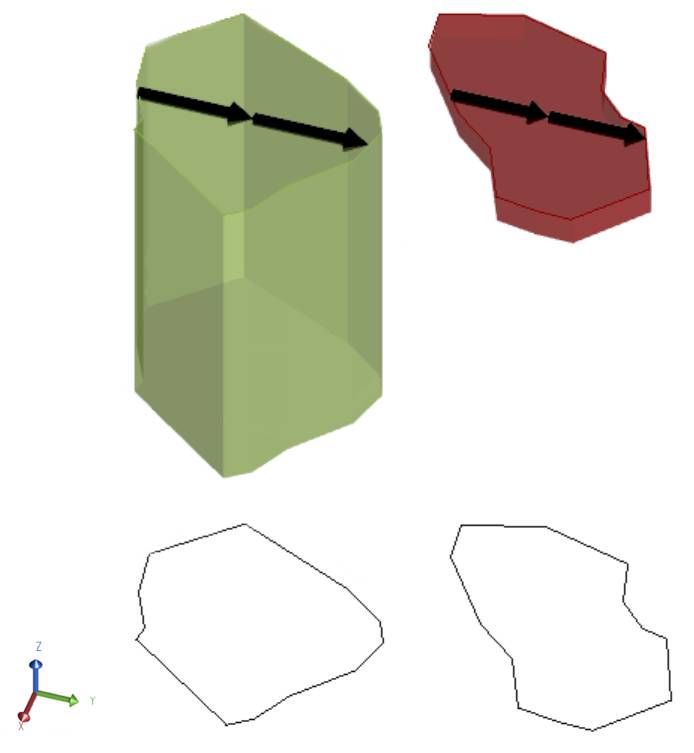
Two polygons converted to Mining (green) and Drilling (red) activity areas. Each polygon was extruded from a specified elevation to the topography to create the activity area solid. Both polygons were converted at the same time: in the conversion configuration, by referencing the polygons’ metadata, each polygon was mapped to a certain activity.
Convert from solids
Solids can be converted to activity areas.
A solid must be allocated to a mining level. This assignment doesn’t change the actual elevation of the solid.
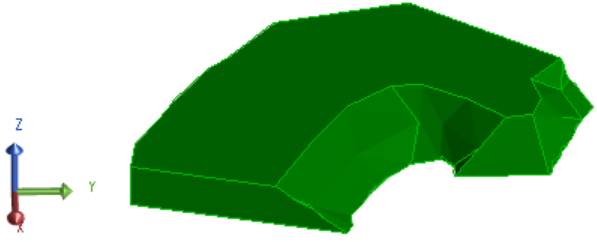
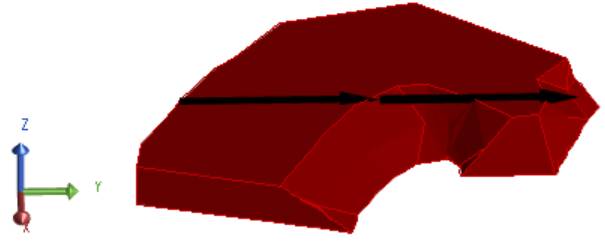
The result of converting a grade control solid (green) into a Drilling activity area (red) using the Solid method.
Reference metadata
It’s convenient to convert a set of objects at a time – rather than individually. For example, after importing solids that represent drilling patterns on a bench, simultaneously converting the solids is more efficient than doing it one by one. However, the objects likely require differing conversion configurations: being mapped to specific activities, pits, mining levels, naming conventions, and so on.
You could have differing drilling activity area types, managing different pattern conditions like burden, spacing, and depth. These activity areas are externally designed as solids and imported into XECUTE. The metadata saved to each solid indicates its associated conditions (the drilling activities, the mining level, name…). For the conversion, the solids require different combinations of inputs.
When converting several objects, if the objects will have different conversion inputs (which is likely the case), the input expressions shouldn’t be static (each returning a single value for all objects). Rather, within the conversion configuration, you can prepare dynamic filters and expressions—that reference the imported object’s metadata—to assess the given object (like a polygon in a feature layer) and derive the required input.
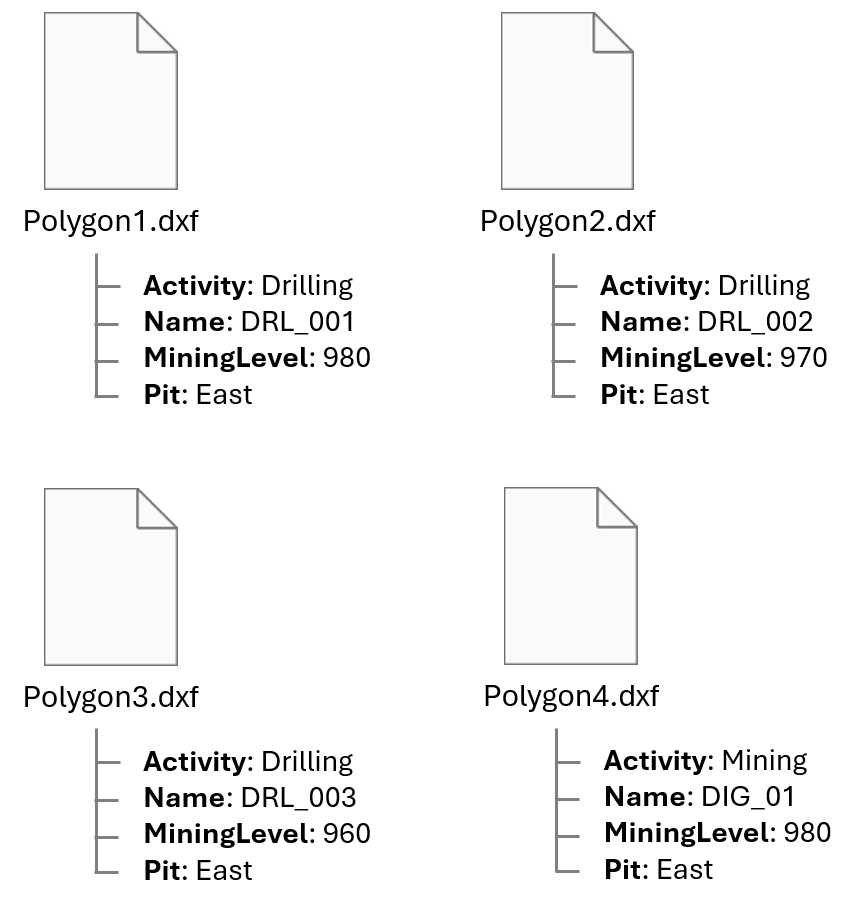
Let’s say the imported polygons (outlining the required activity area shapes) have a rigid naming structure. The Name metadata field specifies the required activity name area of each polygon. Rather than converting the polygons one by one or renaming the polygons after a bulk conversion with static inputs, you could reference the Name metadata field in the Area Name Format expression to automatically derive each activity area’s name.
|
Definition |
Area Name Format |
Filter Expression |
|---|---|---|
|
Drilling |
Name |
Activity = "Drilling" |
|
Mining |
Name |
Activity = "Mining” |
Referencing the Activity metadata field, in the activity area filter expression, so that an activity area is generated for the matching object and activity.
|
Property |
Input |
|---|---|
|
Pit Expression |
Pit |
|
Mining Level Expression |
MiningLevel |
Mapping the correct pit and mining level to each activity area by referencing the appropriate metadata fields
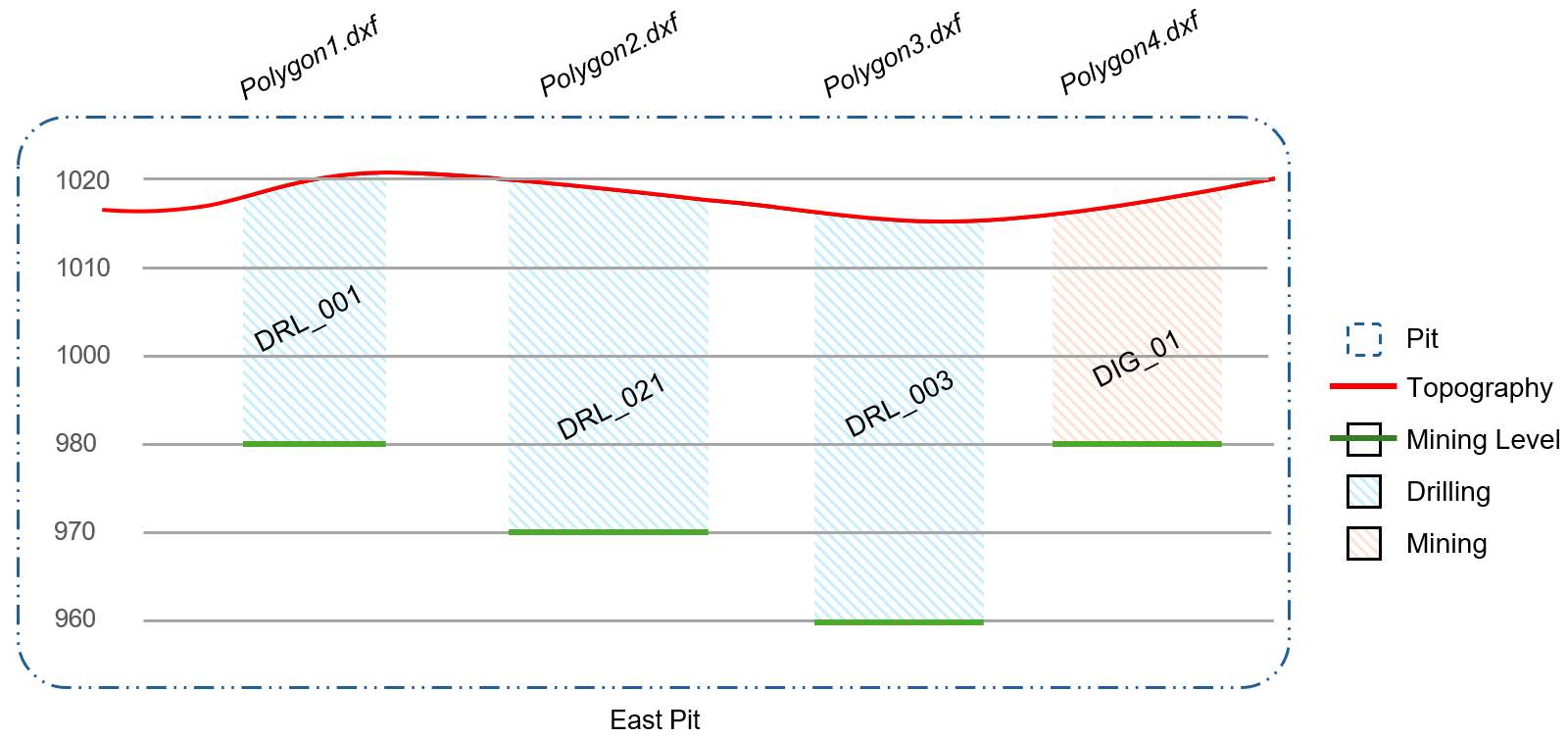
A diagram of the resulting activity area shapes
This approach makes converting objects requiring different inputs quick, allowing you to respond to rapidly changing plans. It also prevents you from relying on overly grouping objects within feature layers to manage and bulk convert them.
Input expressions
In the conversion configuration, you can reference metadata of the imported feature layers in the:
-
Names of the activity areas to be created.
-
Pits of the activity areas to be created.
-
Mining levels of the activity areas to be created.
The following items can be referenced in a conversion expression:
• All metadata fields for the selected objects.
-
The layer name.
-
The original source file name.
-
The current object ID.
Activity filters
When simultaneously converting many objects, each object could require different activity associations. In the conversion configuration, you can provide parameters to dictate whether a shape is created for the corresponding activity.
Each activity row includes an optional filter expression that assesses the given object and can reference its metadata. If the object meets the circumstances of the expression (returns True), an activity area will be created for that object and activity combination.
Conversion properties
|
Activities |
|||||||||||||||||||
|
This section determines the activities involved in the conversion. The software will generate an activity area for each selected object and activity combination. Without using filters:
Using filters, you can select multiple activities – but generate activity areas only for matching input objects. When multiple activity areas are generated for a single object, those activity areas exist in the same space – overlapping each other. A table includes a row for each activity in the project. Select the checkbox of an activity to assign it to the converted activity areas. |
|||||||||||||||||||
|
Activity Checkbox |
Defines whether the given activity is involved in the conversion. Unless filters are used, the software will create an activity area for each selected object and activity combination. |
||||||||||||||||||
|
Definition |
Specifies the name of the activity. |
||||||||||||||||||
|
Area Name Format |
An expression that allocates a name to each activity area generated from the given object. The expression must return a text result. It can reference metadata fields from the selected import files as well as relevant system fields, including:
|
||||||||||||||||||
|
A feature layer, guidance file, or grade control file could have several objects (like many polygons or solids). You might want different activities allocated to different objects. For example, there could be two polygons. One polygon should become a Mining activity area, and the other should become a Drilling activity area. Using filters, you can match specific activities to specific objects. |
|||||||||||||||||||
|
Filter Checkbox |
Defines whether a filter is active for the given activity. |
||||||||||||||||||
|
Filter Expression |
A filter expression that determines whether an activity area will be created for a given object (like a polygon in a feature layer) and activity (like Mining) combination. The expression evaluates the given object, including its metadata field values. For the given activity:
The expression should reference and evaluate the metadata of the objects to derive a result. Let’s say several polygons have a metadata field named Activity.
Certain polygons should be matched to specific activities.
To correctly match objects to activity areas, these expressions are entered:
Looking at the result:
Without these filters, an activity area would be created for all selected object and activity combinations. |
||||||||||||||||||
|
Spatial Settings |
|||||||||||||||||||
|
Activity areas must belong to a specific pit. |
|||||||||||||||||||
|
Pit |
Defines how each converted activity area is assigned to a pit.
|
||||||||||||||||||
|
Pit Specification |
Manually allocates all converted activity areas to the selected pit. |
||||||||||||||||||
|
Pit Expression |
An expression that evaluates each object (i.e., the polygons in a feature layer) to be converted. The expression determines the pit assigned to each object’s associated activity area (or activity areas when multiple activity areas are generated from the same object). The expression must return the name of a pit. The expression can examine the metadata field values of the objects to derive a result. Prepare the expression in the expression builder. Let’s say the objects have a metadata field named Pit, with a value representing the object’s intended pit.
To assign each object to the correct pit, the expression is simply Pit. |
||||||||||||||||||
|
An activity area must associate with a specific mining level. The mining level represents the elevation of the floor of the activity area.
|
|||||||||||||||||||
|
Mining Level |
Defines how each converted activity area is assigned to a mining level.
|
||||||||||||||||||
|
Mining Level Specification |
Manually allocates all converted activity areas to the selected mining level. |
||||||||||||||||||
|
Mining Level Expression |
An expression that evaluates each object to be converted. The expression determines the mining level assigned to each object’s associated activity areas. The expression can examine the metadata field values of the objects to derive a result. Prepare the expression in the expression builder. Let’s say the objects have a metadata field named MiningLevel, with a value representing the object’s intended mining level.
To assign each object to the correct mining level, expression is simply MiningLevel. |
||||||||||||||||||
|
Import Type |
Tells the software how to convert the selected objects. The options available depend on the object types identified in the input files.
|
||||||||||||||||||
|
Simplification Tolerance |
Input polygons might have an excessive number of points, resulting in overly complicated shapes that can affect the software’s processing time. Before converting the polygons to activity areas, you can use simplification to reduce the number of points in the polygon while retaining its essential shape. Using this property, specify a number that represents the degree of the simplification. |
||||||||||||||||||