Resource assignments
For a Resource to be available for assignment to an activity area it must first be added to the 3D Scene.
There are several ways to add a Resource to the 3D Scene:
-
Right-click on the 3D Scene and select theInsert Resource icon .
-
Use the keyboard shortcut (R key).
-
In the Resources tab toolbar menu, click the Insert Resource icon.
A dialog appears with Resources grouped by type. Select the type of Resource from the dropdown menu, then select the resource instances to add to the 3D Scene. Resources currently in the 3D Scene are highlighted and clicking on the highlighted Resource icon will zoom to it.
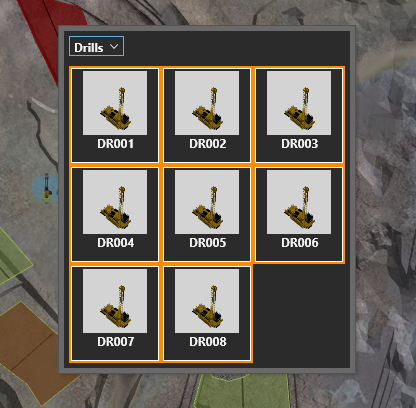
After you have selected a resource, it is visible in the 3D Scene and can be assigned to specific activity areas.
To remove a Resource from the 3D Scene, select it in the scene and press the Delete key, or right-click to open the Resource radial menu and click the Delete Resource icon.
Assignment by click and drag
Click on the Resource in the 3D Scene, then drag and drop the Resource onto the desired activity area.
- If the Resource can be assigned to the activity area, the activity area border will be green
- If the Resource is already assigned, the border will turn orange
- If the Resource cannot be assigned, the activity area border will turn red
- Resources can be assigned from one activity are to another by click and drag the Resource between activity areas.
After a resource has been assigned to an activity area, a corresponding task will display on the Gantt chart.
Assignment by dragging the travel path node
See Resource Paths.
Assignment when creating activity areas
Resources can be assigned in the drawing dialog before the activity area is drawn. Once set, the default resource for the activity will be remembered for subsequent operations.
Assignment from an activity area
Right-click the activity area and select the Assign Resources icon. Multiple activity areas can be selected and assigned resources at the same time.
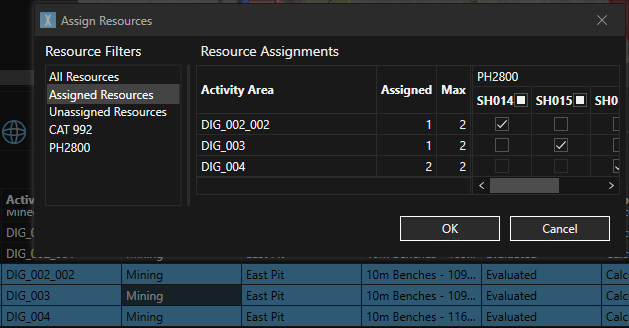
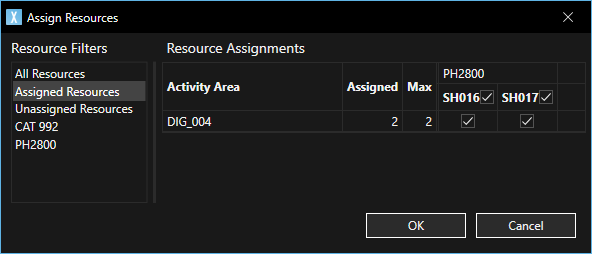
The Assign Resource control is displayed. Select the check box to assign a resource to the activity area.
Select the Resource filter to use.
To add a new resource select the Unassigned filter and select an additional resource.
| Item | Description |
|---|---|
| All Resources filter | Lists all resources available for the activity type. Set in XECUTE Config Configuration > Resources. |
| Assigned Resources filter | Resources currently assigned to the activity area. |
| Unassigned Resources filter | Resources that can be added to the activity area but are currently unassigned |
| Resource Type filter (PH2800, CAT 992 in example above) | Resources for the resource type that are available to the activity type. |
| Activity Area | Selected activity area name. |
| Assigned | Current number of assigned resources. |
| Max | Maximum number of resources that can be assigned to the activity type. Set in XECUTE Config Configuration > Activities. |
Assignment from the activity area grid
Select one or more activity areas by right clicking Assign Resourcesto open the Assign Resources dialog. See Assignment from an activity area for more details.
Resources can only be assigned to activity area where that Resource has been allowed for that Activity Definition. See XECUTE Config > System Configuration > Resources.