Properties
The properties of a selected activity area are listed in a Properties panel by default to the right of the 3D Scene.
| Tab | Description |
|---|---|
|
General |
The main properties of the Activity Area. The following properties are not editable for the selected area:
The following properties are editable for the selected area and will override default settings for the activity (as set in XECUTE Config):
|
|
Fields |
The principal fields enabled for the activity (set in XECUTE Config > Activities > Relevant Fields) will appear in this tab. The fields are grouped into collapsible sections:
|
|
Block Legend |
The legend to be applied to the blocks that intersect the Activity Area. |
|
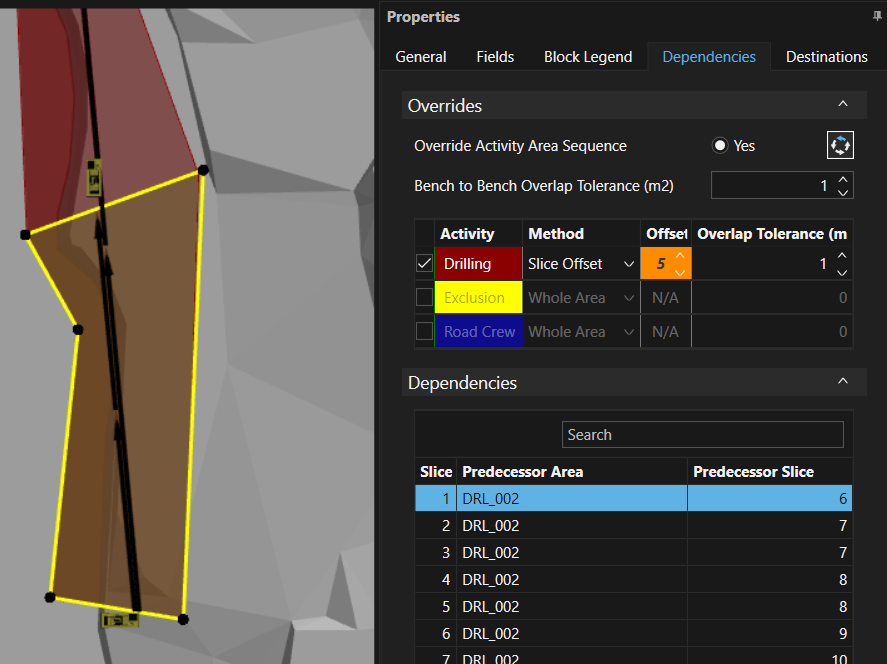
Override Activity Area Sequence - Yes will allow the override of the default activity dependency settings. Click the Reset button Dependencies - A list of dependencies (the predecessor activity area and slice number) that must be satisfied before the selected activity area can begin mining. |
|
|
Destinations |
Material destinations for the selected activity area. Click the Edit button to override material destinations. |
 to reset dependency rules. See
 Dependencies
To show the predecessor areas for an activity area, click on the activity area to open the Properties panel then click the Dependencies tab
Any dependencies (predecessor activity area slices) that must be mined before the selected activity area can be mined are listed in the Dependencies section grid.
The predecessor activity types for the selected Activity Area, and hence the areas that may appear in the Dependencies panel, are set in XECUTE Config > System Configuration > Activities > Dependencies. These settings appear in the Overrides panel (greyed out) and can be overridden by setting Override Activity Area Sequence to Yes.
| Field | Description |
|---|---|
| Override Activity Area Sequence |
Select Yes to override the default dependency rules for the activity. Once values are overridden, you can reset the rules by clicking the Reset button. |
|
Bench to Bench Overlap Tolerance (unit) |
This is the amount of horizontal overlap allowed (in plan view) between areas on adjacent mining levels. If the overlap exceeds the tolerance, the overlying area will be a predecessor for the underlying area. This setting is useful to prevent small overlaps due to drafting inaccuracies from holding up areas. |
|
Overrides table Is editable when Override Activity Area Sequence is set to Yes. |
Activity - If selected, the predecessor activity for the selected area. Method - Set the area type that must be mined (whole area or slices) from the predecessor area before the selected area can be mined. Offset - If Slice Offset method is selected, set the number of slices to 'mine' from the predecessor before the selected area can begin. Overlap Tolerance - The area, in local units, of allowed overlap between the predecessor and successor areas before a dependency is triggered. This setting is useful to prevent small overlaps due to drafting inaccuracies from holding up areas. |
|
Dependencies Table Entries in this table can be searched using the Search box or filtered by right-click the table headers of the pencil in the footer. |
Slice - The slice number of the predecessor area, slices are arranged perpendicular to the mining direction and are numbered from the mining direction start point. Predecessor Area - The predecessor Activity Area name. Predecessor Slice - The slice number of the predecessor area. In the image above the first slice of DIG activity must wait for slice 6 of Drill activity (1+ offset of 5) |
Quick estimates
To quickly view the main properties of an Activity Area, hover the mouse over the area.
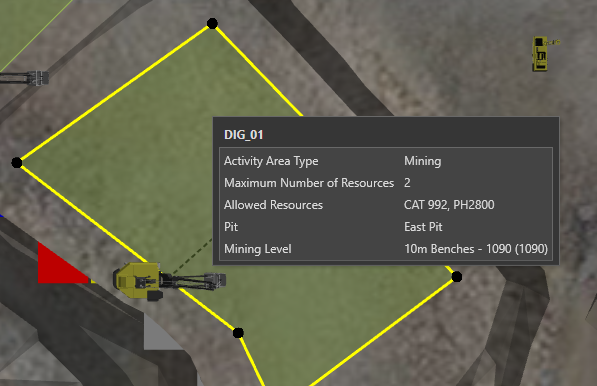
The Quick Estimate window can be enabled and disabled in Graphics Settings > Advanced Settings > Quick Estimates.
When drawing a new activity area, a Quick Estimate window is displayed at the bottom right corner of the scene. This shows a real-time estimation of the activity area Plan area, Volume and Average Thicknessalong with the configured mining level.
The values in this window are calculated based on the points defined in the activity area and the potential next point indicated by the current cursor position. The plan area is calculated based on the shape being drawn. The average thickness is calculated based on an average of the vertical distance between topography and the mining level at each of the defined points and the potential next point indicated by the current cursor position. The volume is calculated from the plan area and average thickness.
In order to update the values in real time, the calculations are done locally. Undulations in the underlying surface between vertices are not considered in this estimate. As such, the estimate will be most accurate when:
- More points are used, or
- The vertical distance between the roof and floor is fairly consistent across the activity area.
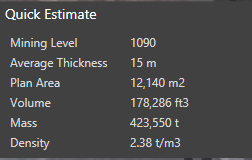
Once the activity area has been initially evaluated it is updated with additional data during subsequent editing. The values are more accurate and include both Density and Mass. Density is not recalculated during the estimation process, so the estimate for Mass will be most accurate when the density is homogeneous.
The Quick Estimate window disappears when editing of the activity area ceases, either as a result of selecting elsewhere, or after approximately seven seconds have passed where there have been no changes to the activity area shape.