Open topic with navigation
Resources
Resources are mining equipment that act on activity areas. Each Resource can be associated with one or more activities and has a default production rate that is set in XECUTE Config.
The resource production rate applies to the activity areas activity type Quantity property to determine the length of the productive portion of the task in the Gantt chart. Multiple resources can be assigned to an activity area and each resource will process the aggregated quantity field value for the activity area at their respective production rate.
For example, a Resource that is configured for the Production Drilling activity and operates at a particular rate will process all Activity Areas of type Production Drilling.
Adding a Resource
There are several ways to add a Resource to the 3D Scene and the Gantt chart:
-
Right-click in the 3D Scene (away from any activity areas) to open the radial menu then click the arrow above the Insert Resource icon.
-
In the Resources tab toolbar menu click the Insert Resource icon.

The Resource dialog will appear.
Select the Resource type from the drop-down list.
Click or Ctrl+Click to select the resources to add.
If the resource already exists in the 3D Scene it will have an orange border in the selection panel.
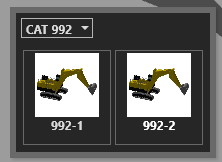
Selecting a Resource
To zoom to a resource that has been added to the 3D Scene :
-
In the Gantt chart, double-click the resource name.
-
In the Resources tab, double-click the resource name in the grid.
Resource menu
Right-click a selected Resource in the 3D Scene to open the radial menu.

|
Remove the Resource from the 3D Scene. The Resource will be unassigned from all Activity Areas and removed from the Gantt chart.
|

|
Zoom to Scheduled - Zoom to the activity areas that the resource has been assigned to.
|
Resource visibility
The display of resources in the scene can be managed by the Scene Manager and the Resources tab toolbar.
-
In the Scene Manager, toggle the resource to display in the tree-view Resources item.
-
In the Resources tab, use the toolbar visibility eye icon to toggle all resources.
Hiding a Resource in the Gantt does not hide it in the Scene. See Gantt Tab > Gantt Settings > Visible Resources section to control Resource visibility in the Gantt.
Resources, by default, are displayed in the scene at the Activity Area they are currently assigned to (the tasks in the Gantt under the timeline). As the schedule progresses, the resource follows the face position of each mined area. To control the position of the resource during the schedule animation, the offset and rotation angle with respect to the mining direction can be adjusted.
Resource Display Settings
- Resource icon, colour, scale: XECUTE Config > Resources.
- Resource mining path offset, rotation angle and placement level: XECUTE Config > Resources> Resource Type.
- Resource actual position and scheduled travel path: Resources tab toolbar. The actual resource starting position requires the configuration of a Resource Position type Data Feed In.