Monitoring
Process Monitoring
The Process Monitoring screen is used to review and monitor background processes particularly for calculations.
The process monitor displays the following detail:
-
Process - the type of background process.
-
Calculation
-
Data transfer
-
Model publish
-
Model import
-
Live data synchronisation
-
Logic transfer
-
Master/child synchronisation
-
Data rollover
-
-
Mode - the user mode in which the process was triggered.
-
Model - the model in which the process was triggered.
-
Branch - the branch in which the process was triggered.
-
User View - the user view in which the process was triggered. (This is blank if triggered from Construct mode).
-
Status - the status of the process.
-
Progress - the progress of the process (percentage complete).
-
Start time - the time at which the process was triggered.
-
User - the user who triggered the process.
-
Details - additional details for the process. Click View to see more details.
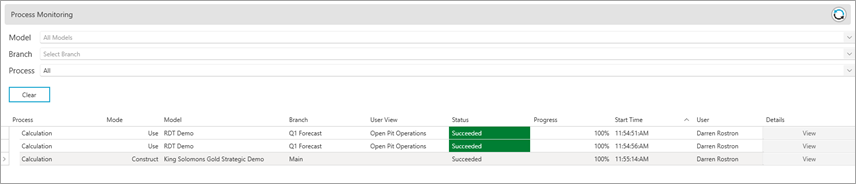
You can filter the list of processes by model, branch and process type using the selection lists provided, or by clicking the filter icon in the column headers.
You can sort the list of processes using the arrow in the column headers.
Audit Logs
The Audit Log allows system administrators to review all data changes made by end users to the live data in Use mode. The data captured for each user action includes their user name, date/time, model, user view, branch, spreadsheet, cell, and the action taken.
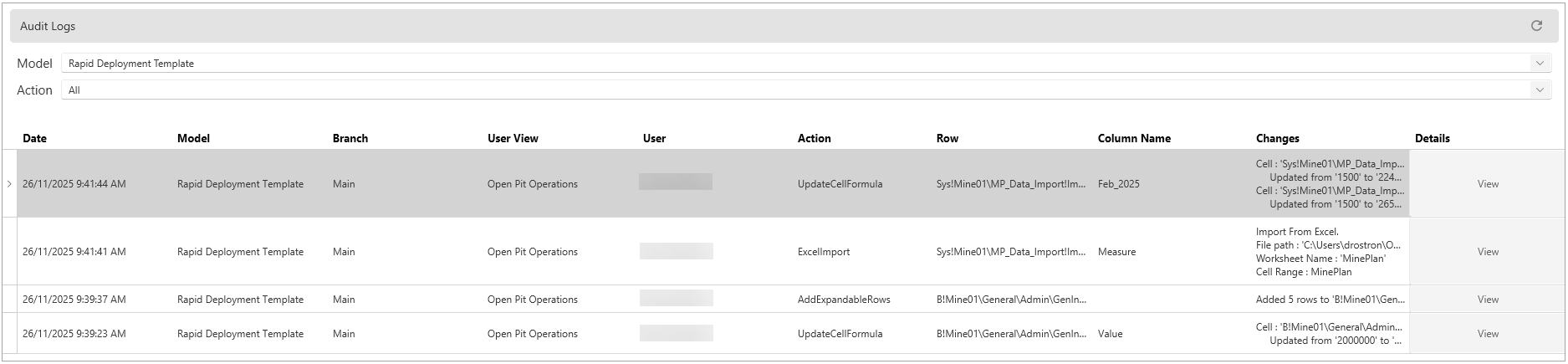
Each user action is logged as follows:
-
For individual cell changes –log the before and after cell values.
-
For copy and paste – log the before and after cell values.
-
For data exchange – log the routine name and dataset selected.
-
For Excel import – log the parameters used (filename, sheet, range).
The audit logs are stored and associated with each model and version branch. Therefore, when a branch and/or model is deleted, either manually or via a database management routine, the associated audit logs will also be deleted.
To view and audit log:
-
Open Administration mode.
-
Click Monitoring > Audit Logs on the menu.
-
Select the Model from the available list.
-
Optionally, select an Action to filter the list based on the action taken.
-
To view more details for a log entry, click View next to that entry.