AMT Insights (AI)
Insights is an AI-driven app that leverages natural-language generation to turn customer's raw maintenance, cost and performance data into concise, role-tailored summaries at the click of a button. Teams get immediate plain-English insights into key performance indicators, emerging risks and cost variances.
Insights leverages data from AMT's Quick Watch.
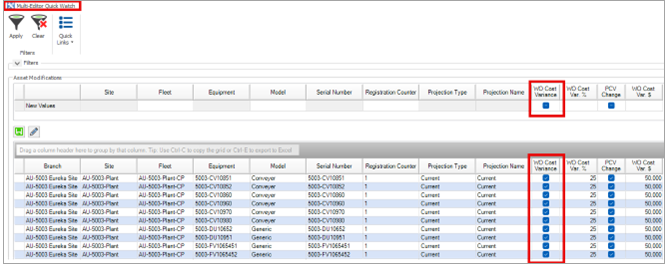
As with Quick Watch, you can only see data you have access to, and variances are defined based on settlement's actual costs versus their planned costs found on strategy tasks - both for the default cost bearer. Furthermore, for assets (and their data) to be available in the Quick Watch and in turn under AMT Insights, flag the assets and Quick Watch assets in the Multi-Editor Quick Watch screen.
You can:
-
View highlights of key performance indicators (KPIs).
-
Understand what has changed, and why.
-
Identify areas that require immediate attention.
AMT Insights (AI) is a decision support system providing recommendations and insights to assist users by providing data-driven insights based on available information, including using an AI large language model (LLM). No data is stored in the Insights LLM, and data analysed does not further train the LLM. Insights does not replace professional judgement or final decision-making authority. Data may be incomplete or outdated, is not real-time and has not been verified.
Insights are automatically regenerated on a schedule (the default is every 24 hours) to consider any changes in the underlying AMT data since the last analysis by the AI service.
Events (including changes to any data or information) may occur, and future outcomes may be impacted by numerous factors that cannot be anticipated. Users are responsible for interpreting outputs in context and for making final decisions. RPM are not liable for any outcomes resulting from the use of Insights.
Insights does not currently indicate if Annualised Cost Impact (ACI) values are positive or negative. Users should check the source data in AMT to confirm. Whether ACI is positive or negative will be made clear in a future version.
Setting up AMT Insights
The first time you open Insights, there are no Insights generated.
-
Click Select Insights. Only Insights for the assets you have access to are displayed.
-
Select the Insights you want to view.
Save an Insight
-
To save an Insight, on the right of the Details panel, click Save.
-
Enter a Comment.
-
Click Save. The Insight is saved.
View saved Insights
-
On the right of the Details panel, click Saved Insights. A list of the saved Insights displays.
-
Select the Insight you want to review.
Download an Insight as a PDF
-
Click Download as PDF and select the location you want to save the Insight to.
-
Click Save.